The Snapshot
A Snapshot is a free one-page report on how a practice website does against automated accessibility checks. If you received one, this page explains it. If you found our scanner in your server logs, this page explains that too.
What it shows
- The federal deadline for a practice of your size
- How many of the pages we read had failures, and how many failures in all
- The three most serious barriers, each with a screenshot, a plain statement of who it affects and how it is fixed
- Every kind of failure found, with its severity and the WCAG requirement it falls under
- Results for each page we read
- Each PDF linked from those pages, and whether a screen reader can read it
- Outside patient tools, video, widgets and whether the site has an accessibility statement
- What to do next, in order
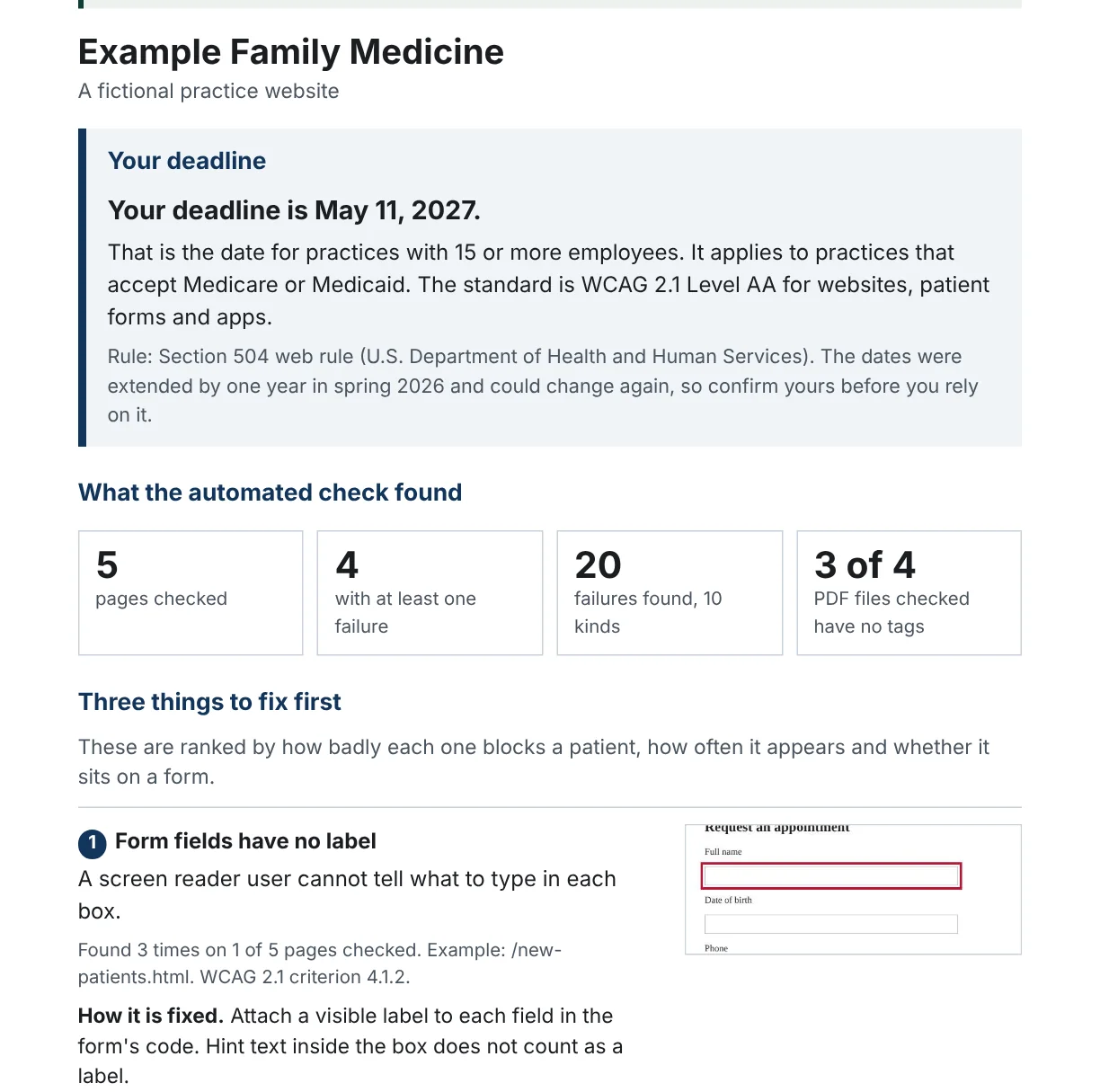
How to read your Snapshot
The report runs five or six pages. The first page is the summary. The rest is the detail your web developer needs.
Your deadline
The date that applies to a practice of your size. If we could not tell how many people you employ, both dates are shown.
What the check found
Four figures: pages read, pages with a failure, total failures and how many of your PDFs lack tags.
Three things to fix first
Ranked by how badly each one blocks a patient, how often it appears and whether it sits on a form. Each has a screenshot with the problem outlined.
Every kind of failure
A table of everything the check found, most severe first. Severity is the rule engine's rating, from minor to critical.
Page by page
Each page we read, how many failures it had and the most frequent one. Pages patients use most are read first.
Posted documents
Each file, its length and the result. A file marked as a likely patient form matters most, because the rule's exceptions do not protect it.
What to do with it
The Snapshot is yours to use, with or without us.
-
Give it to your web person
The findings are specific enough to act on. Many are small changes repeated across pages.
-
Confirm your date
Count employees and ask your attorney which date applies. The rule in plain terms.
-
Write to your vendors
Ask each portal or scheduling vendor named in the report for its Accessibility Conformance Report.
-
Decide on a full review
An automated check finds only part of the picture. A full assessment is $1,950.
What it is not
A Snapshot is not an audit and not a legal opinion. It runs automated checks on up to 10 public pages. It does not test keyboard use, screen readers, your patient portal or anything behind a login. Automated checks detect only some kinds of barriers, so a clean Snapshot does not mean a site meets the standard.
A full assessment tests every page by keyboard and screen reader and sorts every document. It costs $1,950, credited toward a Compliance Package signed within 30 days. See pricing.
Why your practice received one
We build our list from public federal directories of Ohio medical practices and community health centers. We read each practice's public website and send the practice its own result at no charge. No one is on the list because of a complaint, and we do not publish results for any named practice.
If you would rather not hear from us, reply to the message or write to mic@plainviewaccess.com and we will stop.
About our scanner
This part is for whoever looks after your website or server.
- How it identifies itself
- Its user agent ends with
AccessibilitySnapshot/1.0 (+https://plainviewaccess.com/snapshot) - What it reads
- Up to 10 public pages and up to 12 PDFs linked from them, in a single visit
- How fast
- One page at a time, with a pause of at least one second between pages
- What it obeys
- Your robots.txt file. If the file disallows a page, the scanner does not read it.
- What it never does
- Log in, submit a form, or read anything that is not public. It collects no patient information.
How to block it
Add these two lines to your robots.txt file:
User-agent: AccessibilitySnapshot
Disallow: /
Or send the address of your site to mic@plainviewaccess.com. We will take it off our list and not scan it again.